




Help center
How can we help?
Short answers for setup, Wi-Fi, the messages on your clock’s screen, and your order.
/
Start here
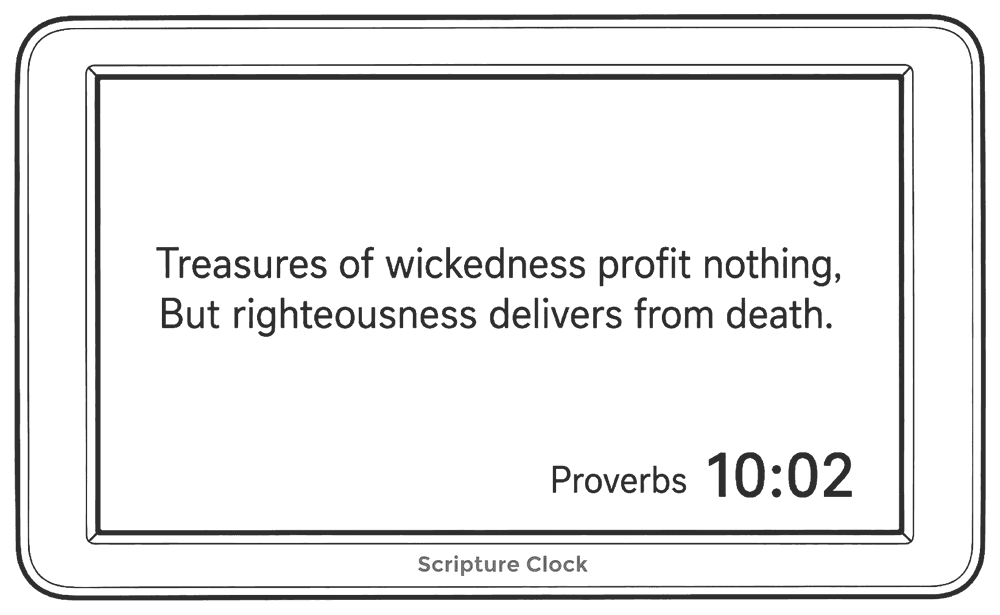
Which clock do you have?

Most asked
Top problems
7-inch clockSet up your clockPlug the clock in, scan the code on its screen with your phone, and the setup page walks you through Wi-Fi, a name and your time zone.7-inch clock“Wrong password for …” on the screenThe clock reached your Wi-Fi but the password did not match. Join the clock's own network again, pick your Wi-Fi and retype the password carefully.7-inch clockWi-Fi your clock can use (2.4 GHz, not 5G)The clock joins 2.4 GHz Wi-Fi only. If your router shows two network names and one ends in "5G", pick the other one.7-inch clock“Setup paused” or “Battery low” on the screenThe clock turned off its setup network to save the battery. Plug it into power and press the WIFI button; setup carries on where it left off.7-inch clockClock shows Offline in your accountOffline means the clock has missed its check-ins for about 20 minutes. Plug the clock in and wait a few minutes; if it stays Offline, it has lost your Wi-Fi.7-inch clockFactory reset your clockPress RST, press it again within about 30 seconds, then press it a third time to confirm. The clock forgets its Wi-Fi and your account and starts setup fresh; its verses stay.10.1-inch clock“That password did not work” on the screenThe clock reached your Wi-Fi, but the password did not match. Tap the network again and retype the password slowly. Capital letters count.10.1-inch clockRestart a frozen clockPress the button on the back three times and tap Restart. If the screen does not respond at all, unplug the clock, wait ten seconds and plug it back in. A restart erases nothing.
Every guide
Browse by topic
7-inch e-paper clock
10.1-inch touch screen
Orders, gifts and account
Contact support
Still stuck?
Tell us what the clock’s screen says and we will help you get it going. Or email hello@scriptureclock.org.