

Guides
How to Turn an Old iPad or Tablet Into a Free Bible Verse Clock
By the Scripture Clock family11 min read
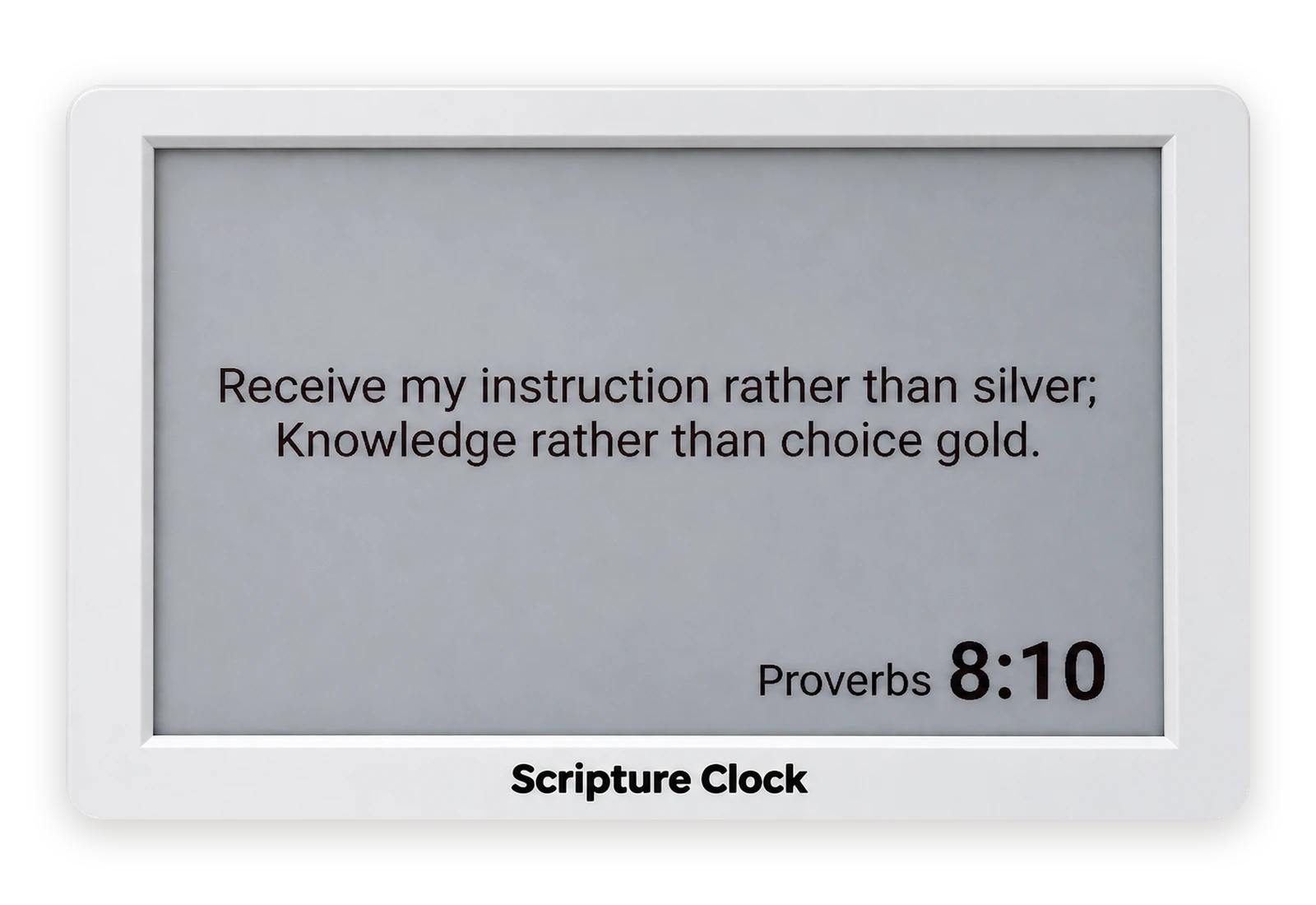
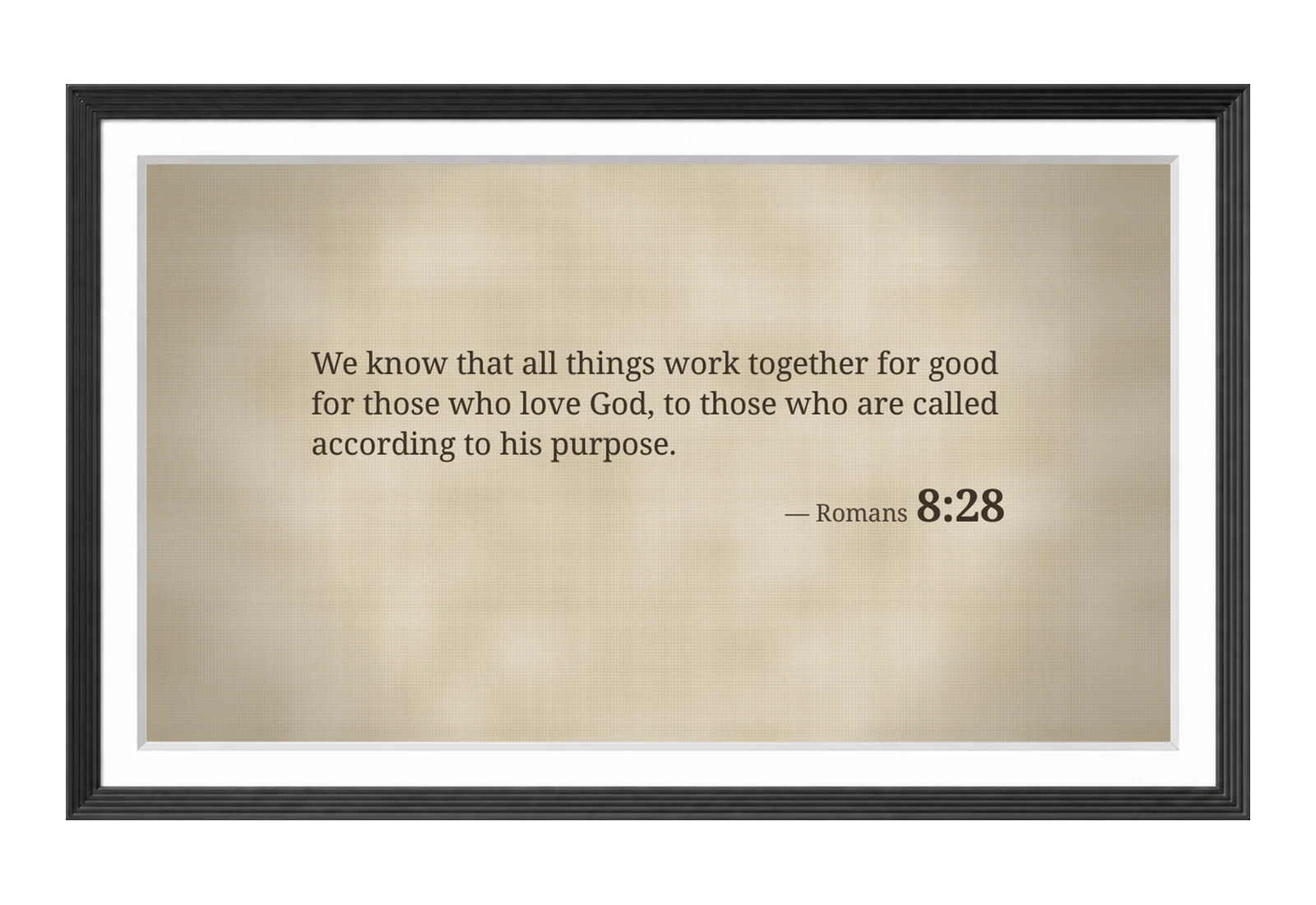
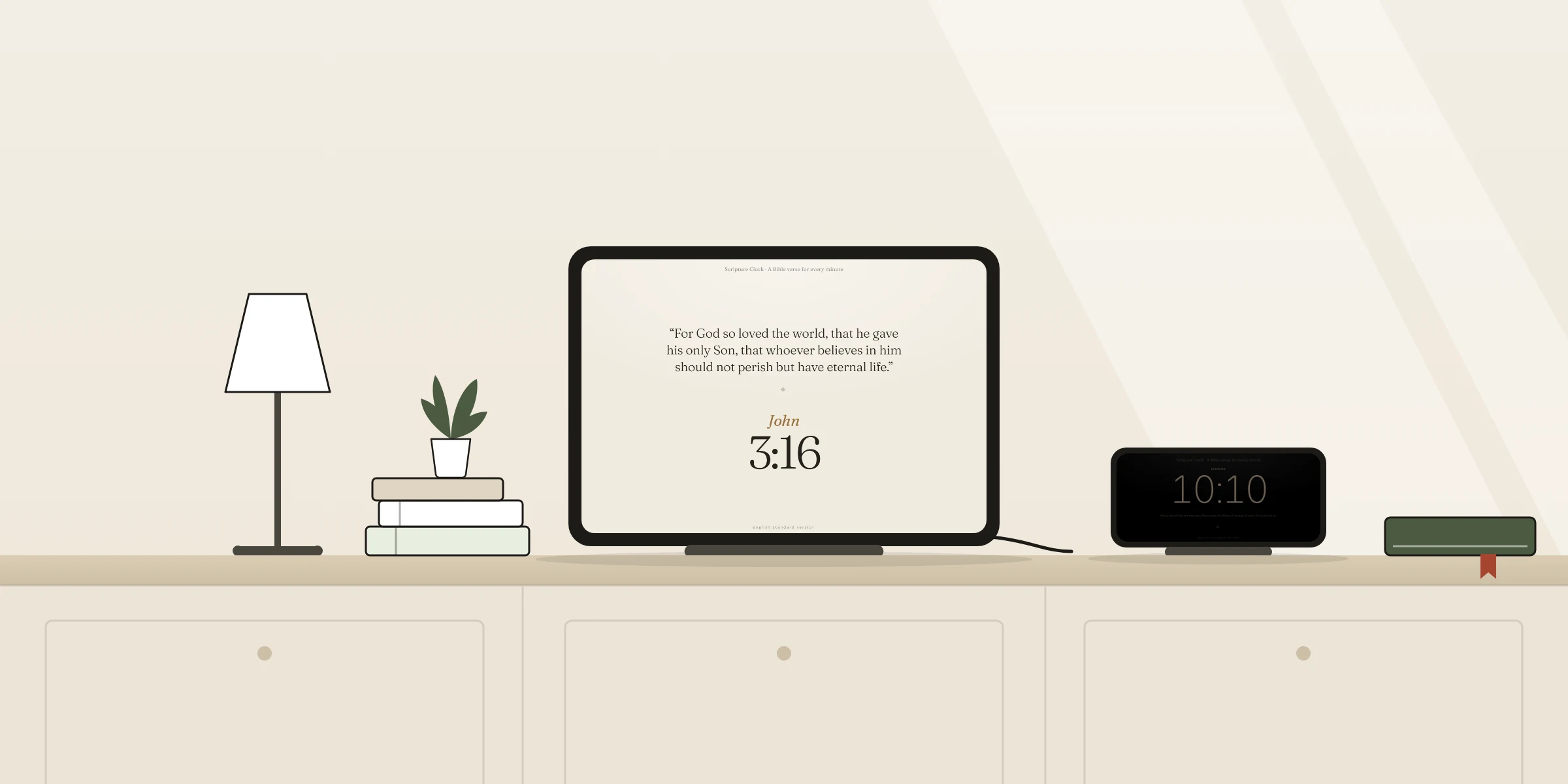
There is probably an old tablet in a drawer somewhere in your house. In about ten minutes it can become a Bible verse clock: a screen on the wall or the shelf that shows a verse for every minute of the day. The hour is the chapter and the minute is the verse, so at 3:16 you read a chapter 3, verse 16.
It costs nothing. Our web clock runs in a browser, and our app for iPhone and iPad is free too. Neither asks for an account. You need three things: a spare screen, a charger that can stay plugged in, and Wi-Fi.
“You shall write them on the doorposts of your house and on your gates.”
A verse by the door is an old habit. This guide is one plain way to keep it with what you already own: how to choose the screen, set up the clock, keep it awake, mount it, and live with it. We also say where the idea runs out.
Pick your screen
Almost any screen with a current browser will do. What changes is where each one works best.
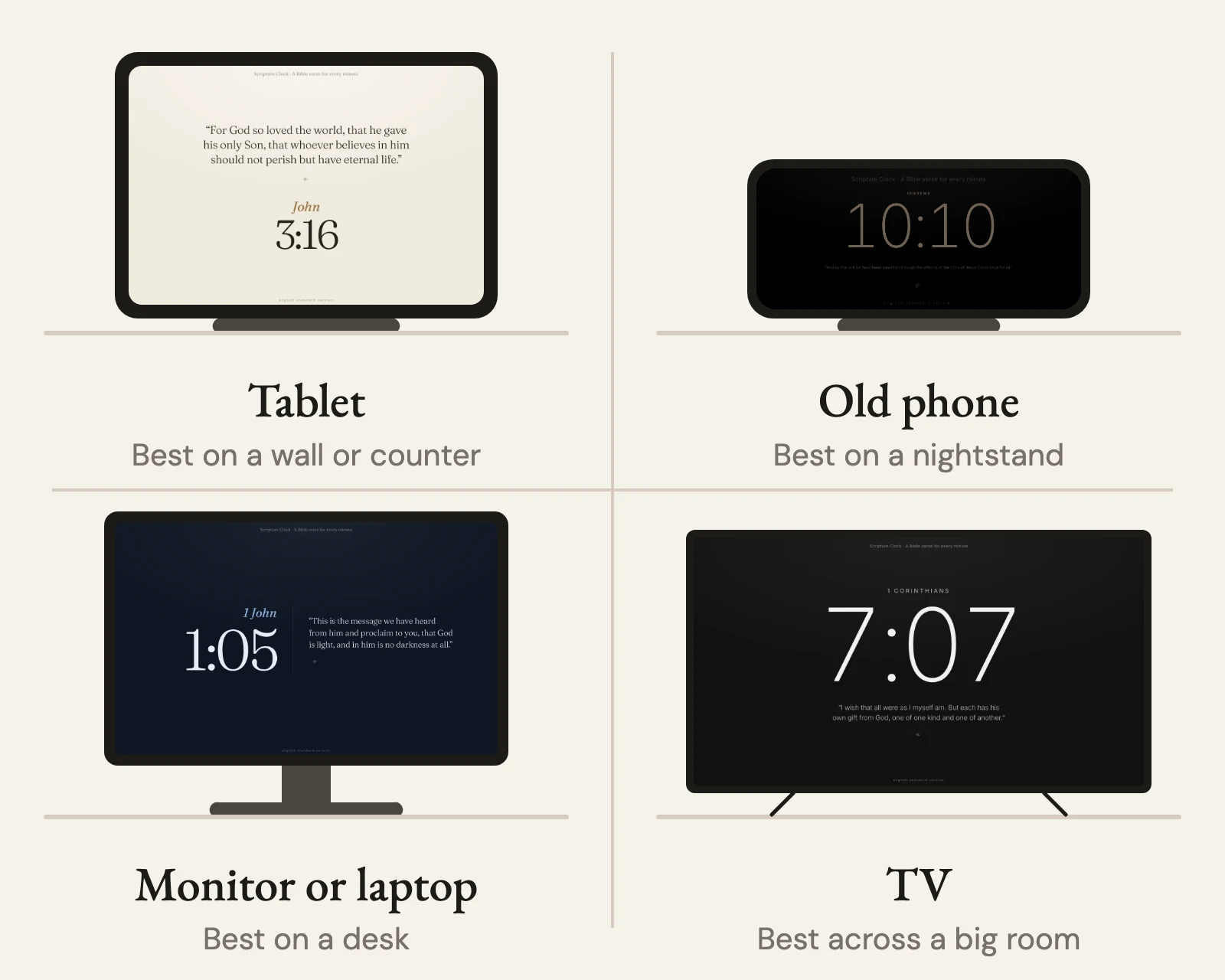
| Screen | Best for | Keep in mind |
|---|---|---|
| iPad | Wall, kitchen counter, desk | Use the app or the web clock. Guided Access locks it to the clock. |
| Old iPhone | Nightstand, small shelf | Small from across a room. Choose the Large time layout. |
| Android tablet or phone | Wall, counter, shelf | There is no Android app, so use the web clock in Chrome. |
| Amazon Fire tablet | Counter, shelf | Web clock in the Silk browser. Fewer ways to lock it down. |
| Spare monitor, laptop or TV | Desk, living room, church lobby | The biggest picture and the highest power use. |
One limit to know before you start. The web clock is built for current browsers. On Apple devices that means Safari 16 or newer, which in practice is an iPhone 8 or later and an iPad (5th generation) or later. Our app needs iOS or iPadOS 16.6 or later, so the cut-off is about the same. On Android, a recent version of Chrome is enough.
Set up the clock, then copy your link
Do this part on whatever is comfortable, your phone or your laptop. Open scriptureclock.org/web and work down the controls under the clock. The numbers below match the picture.
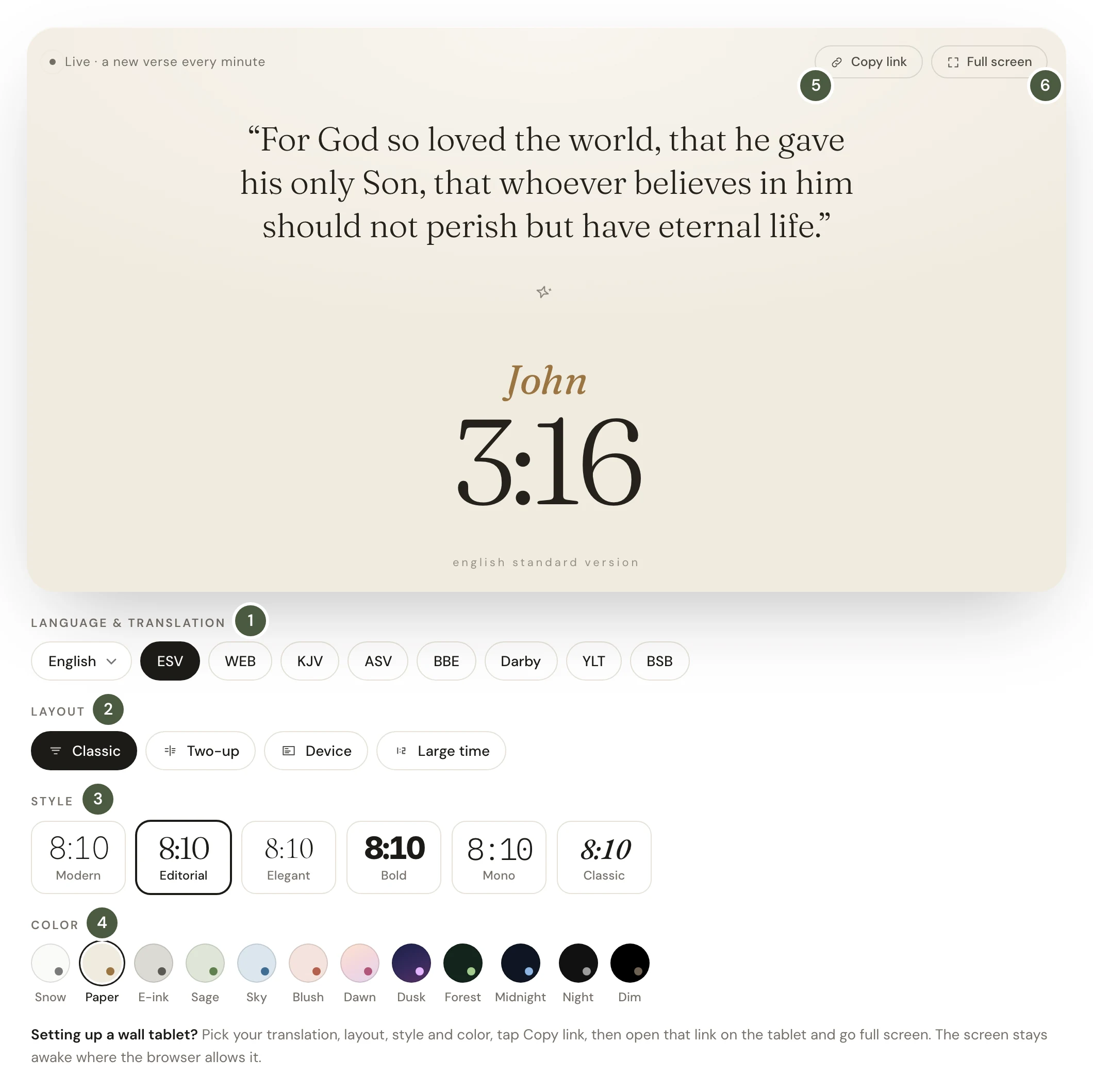
- Language and translation. There are 20 translations in 13 languages, including the ESV, KJV, World English Bible and Berean Standard Bible.
- Layout. Classic puts the verse first and the time beneath it. Two-up sets them side by side, which suits a wide screen. Device follows the look of our clocks. Large time can be read from across the room.
- Style. Six type styles: Modern, Editorial, Elegant, Bold, Mono and Classic.
- Color. Twelve, from light (Snow, Paper, Sage) to dark (Midnight, Night). Dim is black with low, warm text, made for a bedroom.
- Tap Copy link. The link carries your translation, layout, style and color, so any screen that opens it shows the same clock. Send it to the old device by message or email.
- On the old device, open the link and tap Full screen. The buttons fade after a few seconds. Touch the screen to bring back Exit.
While it is in full screen, the web clock asks the browser to keep the screen awake. Recent versions of Chrome and Safari honor that request. Older ones ignore it, so it is worth setting the device itself to stay awake as well. That is the next step.
Keep it on and keep it put
A clock that goes dark after two minutes, or that a toddler can swipe away, is not much of a clock. Every platform has a setting for both problems. Menu names shift a little between software versions; where we know they differ, we say so.
iPad or iPhone, with the app
- Install the free Scripture Clock app from the App Store and open it. Choose your language and translation.
- Go to Settings > Display & Brightness > Auto-Lock and choose Never. If Never is greyed out, turn off Low Power Mode first.
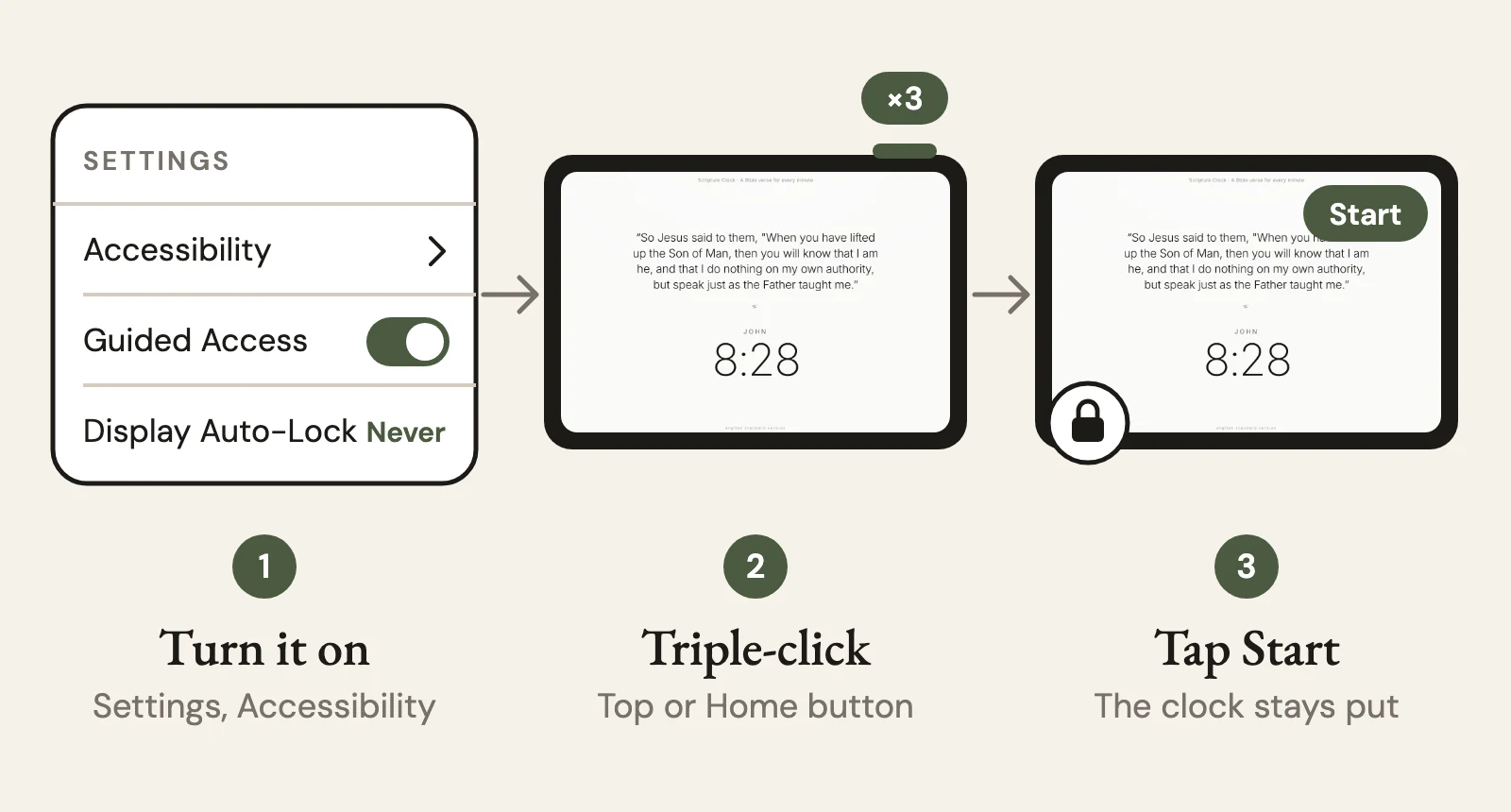
- Go to Settings > Accessibility > Guided Access and turn it on. In Passcode Settings, set a Guided Access passcode. Set Display Auto-Lock to Never.
- Open the app. Triple-click the top button on an iPad, the side button on an iPhone, or the Home button if the device has one. Tap Start.
- The device now stays on the clock and ignores the Home gesture. To leave, triple-click the same button, enter the passcode and tap End.
iPad or iPhone, with the web clock
- Set Auto-Lock to Never and turn on Guided Access first, exactly as in steps 2 and 3 above.
- Open your copied link in Safari.
- On iOS or iPadOS 26 and later, you can give the clock its own icon: tap Share, choose Add to Home Screen, leave Open as Web App turned on and tap Add. Opened from that icon, the clock runs without Safari’s bars. On older versions the icon simply opens Safari, so skip this step.
- Tap Full screen. On an iPad the clock takes over the whole display. On an iPhone, Safari may keep its own bar in view; the Home Screen icon or the app avoids that.
- Triple-click the top, side or Home button and tap Start, as in steps 4 and 5 above.
Android tablet or phone
- Open your copied link in Chrome.
- Turn on app pinning: Settings > Security (or Security & location) > Advanced > App pinning. The names vary by maker and Android version.
- Open the recent apps view (swipe up and hold, or tap Overview). Tap the Chrome icon at the top of its card and tap Pin.
- Tap Full screen on the clock. Chrome keeps the screen awake while the clock is in full screen.
- If the screen still sleeps, use the system switch. Go to Settings > About phone (or About tablet), tap Build number seven times, then open Developer options and turn on Stay awake. The screen will stay on whenever the device is charging.
- To unpin, swipe up and hold. With three-button navigation, hold Back and Overview together.
If you want something firmer than pinning, look at kiosk browser apps. They open one page at start-up and keep it there. Fully Kiosk Browser is a well-known one.
Amazon Fire tablet
- Open your copied link in Silk, the browser that comes on every Fire tablet, and tap Full screen.
- Go to Settings > Display (or Display & Sounds) > Display Sleep (or Sleep) and choose the longest time offered.
- Leave it on the charger and check after an hour that it is still awake. If it is not, a kiosk browser app is the usual fix.
Laptop, spare monitor or TV
- Open your link in any current browser and tap Full screen. Press Esc to leave.
- In the computer’s power settings, stop the display from sleeping while it is plugged in.
- For a TV, connect the computer with an HDMI cable. Or send the tab wirelessly: in Chrome, open the menu, then Cast, save, and share > Cast. From an iPhone, iPad or Mac, open Control Center and choose Screen Mirroring to reach an Apple TV or an AirPlay TV.
- On a TV, choose the Large time layout and a dark color.
Mount it or stand it
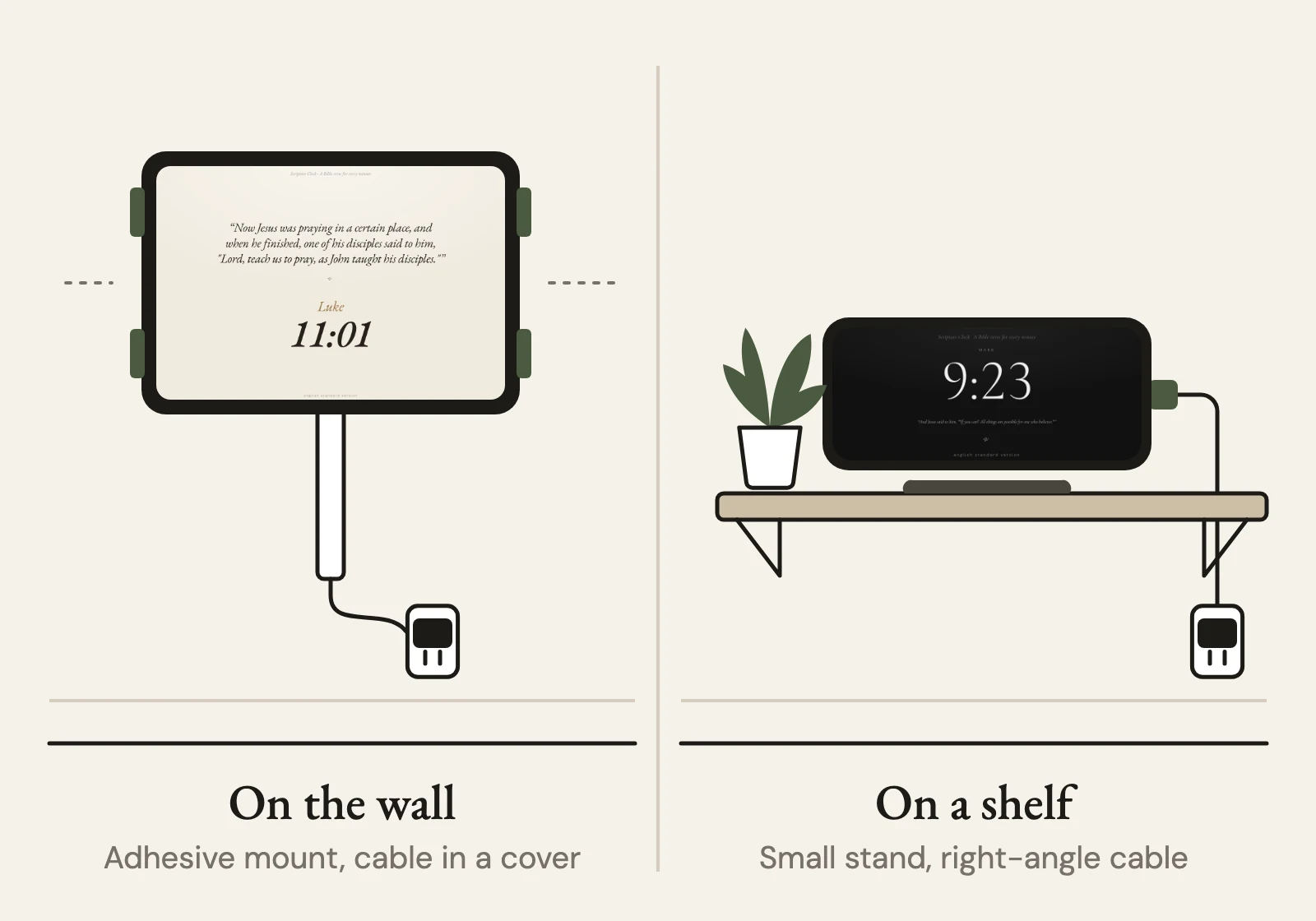
On a wall, an adhesive tablet mount is the gentlest option: four corner holders that stick on and let the tablet lift out. Check the weight rating against your tablet, clean the wall first, and press for as long as the instructions say. Adhesive does not hold well on textured or freshly painted walls. Use a screw-in wall mount there.
The cable is what makes it look finished or not. Mount the tablet straight above an outlet if you can. A right-angle cable lets the plug turn down at once, so it does not stick out of the side. A paintable cable cover hides the run to the outlet.
On a desk, counter or shelf, any small tablet stand works. A low angle, leaning back a little, reads best from a chair. A higher angle suits a kitchen where you stand.
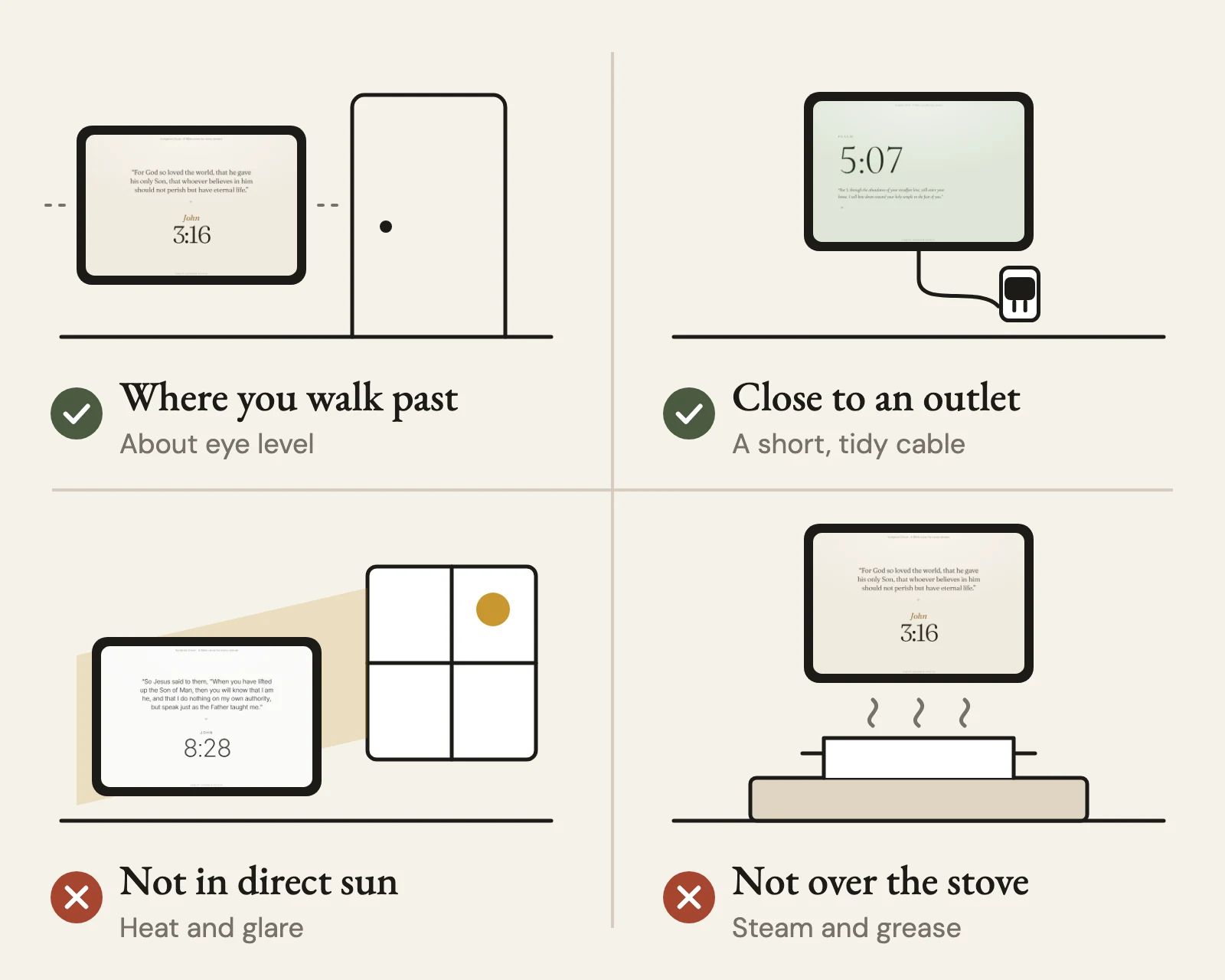
- Put it where the household already passes: by the door, in the hallway, beside the coffee.
- The kitchen or dining room is a good home if you want a verse to start dinner.
- Keep it out of direct sun. Heat is hard on a battery, and glare hides the verse.
- Keep it away from the stove, the kettle and the sink. Steam and grease get into ports and speakers.
- Leave air around it. Do not shut a charging tablet in a closed cabinet.
Living with it
At night
In a bedroom, choose the Dim color and turn the brightness down by hand. The web clock does not change color on a schedule, so pick the color for the darkest hour it will be seen in. The device can warm the light for you: Night Shift on Apple devices (Settings > Display & Brightness > Night Shift) and Night Light on many Android devices (Settings > Display > Night Light) both run on a timer.
Burn-in
Most tablets, including nearly every older iPad and every Fire tablet, have LCD screens, which are not prone to burn-in. OLED screens can: that means iPhone X and most iPhones since, the newest iPad Pro models and many Samsung tablets. The risk comes from the same bright, high-contrast picture staying still for a very long time. The verse changes every minute, but the layout stays where it is. On an OLED screen, keep the brightness low, leave auto-brightness on, and prefer a dark color.
Power
A tablet with its screen on draws a few watts. Left on all year, that comes to a few dollars of electricity in most places. A television draws many times more, so a TV is better as a clock for the hours you are in the room than as one that never turns off.
The battery, honestly
Lithium batteries age, and one held at full charge for years ages faster. Recent Apple devices can stop charging early: iPhone 15 and later have a Charge Limit under Settings > Battery > Charging, and the newest iPads have an 80% Limit under Settings > Battery > Battery Health. Older devices have neither.
So look at the device before you plug it in for good, and again every month or so. If the screen is lifting, the back bulges, a gap has opened in the case, or it gets hot on the charger, do not use it as a clock. Unplug it and take it to an electronics recycler. If it looks healthy, use a good charger and keep it cool and in the open.
After a restart
A software update or a power cut will drop the device back to its lock screen. Open the link or the app again, tap Full screen, and start Guided Access or pinning again. It takes half a minute, and it is the price of using a general-purpose device.
Troubleshooting
The screen still turns off
Check Auto-Lock (or Display Sleep, or Stay awake) again. On Apple devices, check that Low Power Mode is off and that Display Auto-Lock inside the Guided Access settings is set to Never. Then check that the charger is really charging.
The verse has stopped changing
The web clock fetches each verse over the internet. Without a connection it keeps the time but shows one fixed verse in place of the right one. Check the Wi-Fi. The clock catches up on the next minute once it is back.
The time is wrong
The clock uses the device’s own time. Set the date, time and time zone to automatic in the device settings.
The buttons will not go away
They only hide in full screen, a few seconds after the last touch. Tap Full screen and take your hand away.
Is there an Android app?
No. On Android and Fire tablets the web clock is the way to do this.
When a dedicated clock is the better choice
A spare tablet makes a good Scripture Clock, and for many homes it is all that is needed. It is also still a tablet. It glows, it needs its cord, it restarts for updates, and its battery was never meant to live on a charger.
That is why we make clocks. Shiloh, our 7-inch e-paper clock, has no glow at all and needs no cord on the shelf. Bethlehem (8 inches), Olivet and Shechem (10.1 inches) are full-color clocks made to stay on: they plug into the wall, keep their verses on board, and dim themselves at night. If the tablet in your hallway turns out to be something your household would miss, the clocks are in the shop.
Until then, the drawer tablet is free, and it is ready in ten minutes.

A family of four in California, making clocks that keep God’s Word where daily life happens. Our story